
System.Runtime.InteropServices.COMException: The system cannot find the file specified

[COMException (0x80004005): The system cannot find the file specified.]
This Error occurs when using crystal reports as web reporting.

There are several reasons for this.
  • Required DLL are missing in web setup
  • Required Reports files are missing in web setup
  • Access Permisions
Required DLL and Reports are missing in web setup

To over come this you can create web setup as below (VS2008)

Go to Other Projects , Add Web Set up Project.
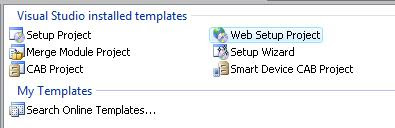


Then Right Click the Project and goto Properties and then Prerequisites and select
crystal Reports Basic for Visual Studio..
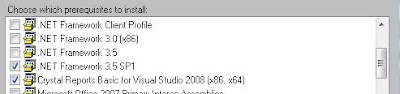


And add other files (sometimes reports files are not including please be careful)

Note:- If your error is still occur use filemon (google it and get the first link) and monitor your files when browsing. it will give what is the actual cause of the error.

Access Permission

Give full permission to asp.net (give permissions in IIS , Windows/Temp, wwwroot )

Comments

Anonymous said…
Can anyone recommend the top performing Remote Management & Monitoring program for a small IT service company like mine? Does anyone use Kaseya.com or GFI.com? How do they compare to these guys I found recently: N-able N-central remote assistance
? What is your best take in cost vs performance among those three? I need a good advice please... Thanks in advance!

Popular posts from this blog

How to Link Two List and Create a combine view in the SharePoint 2010

In this way you can join multiple list together and can create a combine view. for an example assume that you are managing a list for some events. And also you are having a participants in separate list. Thus you want to join the two list and create a composite view. SharePoint 2010 allows you to create this kind of view using  Linked Data Source. in this approach you can create your own custom list in the SharePoint. How to Create a Linked Data source Go to SharePoint designer and  go to the link called data sources. And Click the Linked Data Source button in the ribbon. Then SharePoint designer will prompt following kind of a dialog. In there add two list, that you wan to linked together. I'm adding airline schedule and booking list. those are the two list that i wan to merge. then click next. And it will guide you another screen. it will ask you to select either Merge Merge use to combine list which are having same columns definition. for and example we can s...

How to set Current User Name to InfoPath Person/Group Picker

This method also use for get User Profile Information such as First Name , Last Name , Office and etc. In generally we can not set a default value to InfoPath Person/Group Picker. On the other hand we can not get Current Username in the InfoPath. (Yeh it is true that we can use userName() function. But this will return the Current User Account ID not the name). So we want to use SharePoint user profile services to do this. First we need to  create a user profile connection. Thus First go to Manage connection and click add connection. Then go to receive data option and SOAP Web service and specify the User Profile Service URL . The URL will be something like ( http://sever/sites/site/_vti_bin/UserProfileService.asmx ). This is depends on your site or site collection. if it is a site collection you can omit /sites/site/ part from your URL. then proceed to next , select UserProfileByName and un select the Automatically load. Now you have created the connection....

The content database has a schema version which is not supported this version

How to copy you production SharePoint  database to development environment. I had my production environment as SharePoint 2013 SQL Server 2012 and I want to move the instance to another environment , which is freshly installed and different environment and different KBs Share Point 2013 SQL Server 2016 How to migrate SharePoint 2013 , SQL Server 2012 Content Database to SharePoint 2013 SQL Server 2016. Method 1. This is a general method, which is used for upgrading your content database. 1 . Get the back up of the current Content Database 2. Copy SQL backup to new environment 3. Restore the SQL Back Up in to the new environment 4. Go to the Security Login section and grant permission to content database for existing SharePoint Users.   5. You need to select the User mapping and DBO for the content database. 6 Then, execute below PS in SharePoint PowerShell. Make sure you executed as Run as Administrator 7 Firstly, You need to Update the content database. 8. then, mount the usi...